Boost WiFi speed: Is your internet slow? Discover 10 proven ways to boost your home WiFi speed, from router placement to advanced channel settings. Read the full guide here.
In an era where remote work, online education, and 4K streaming have become the norm, a slow WiFi connection is not just an annoyance—it is a significant disruption to daily life. Many users subscribe to high-speed packages from their ISPs but fail to get the desired speed due to poor optimization of their home network.
If you are experiencing buffering videos, laggy video calls, or dead zones in your house, the problem might not be your provider, but your setup. Here are 10 proven ways to optimize your router and boost your home WiFi speed significantly.
1. Place Your Router in a Central Location
The physical location of your router is the single most important factor affecting signal strength. WiFi signals radiate outward in all directions, much like light from a bulb.
-
Avoid Corners: Placing the router in a corner of your house means half of your signal is being sent to your neighbor or outside walls.
-
Centralize It: Position the router in the most central room of your home to ensure equal coverage.
-
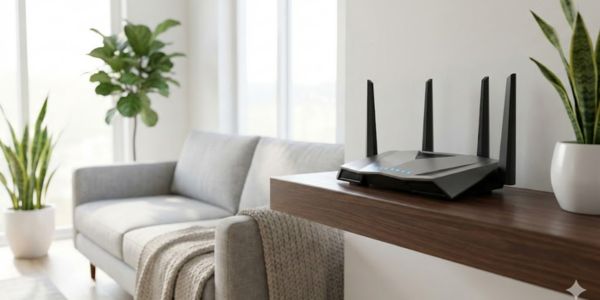
Elevate It: WiFi signals tend to spread downward and outward. Placing the router on a shelf or mounting it high on a wall is better than placing it on the floor.
2. Update Your Router’s Firmware
Just like your smartphone or computer, your router runs on software (firmware). Manufacturers frequently release updates to fix bugs, patch security vulnerabilities, and improve performance speeds.
-
How to do it: Log in to your router’s admin panel (usually by typing
192.168.0.1or192.168.1.1in your browser) and look for the “Firmware Update” section. Modern routers often have a mobile app that makes this process one click away.
READ MORE: HSC 2026 Syllabus: Instructions for Irregular & Improvement Candidates
3. Switch to the 5GHz Frequency Band
Most modern routers are “Dual-Band,” meaning they broadcast two different signals: 2.4GHz and 5GHz.
-
2.4GHz: Better for long-range and passing through walls, but slower and more prone to interference.
-
5GHz: Shorter range but offers significantly faster speeds and less congestion.
-
The Fix: If you are working close to the router, always connect your laptop or TV to the 5GHz band for maximum throughput.
4. Adjust the Antennas Correctly
If your router has external antennas, their positioning matters. Many users instinctively point them all straight up, but that isn’t always the best configuration.
-
Perpendicular Positioning: For the best coverage, position one antenna vertically (straight up) and the other horizontally (flat). This ensures that the signal reaches devices regardless of whether their internal antennas are vertical or horizontal (like a laptop vs. a smartphone).
5. Cut Down on Interference
WiFi signals can be disrupted by other household electronics.
-
Common Culprits: Microwave ovens, cordless phones, and baby monitors often operate on the 2.4GHz frequency. Using a microwave can temporarily kill your WiFi signal.
-
Solution: Keep your router away from these appliances. Additionally, move the router away from large metal objects (like fridges) or mirrors, which can reflect and block signals.
READ MORE: DPDC Prepaid Meter Guide 2026: Balance Check Codes, Helpline, and Bill Payment Details
6. Change the Wi-Fi Channel
If you live in a densely populated area or an apartment complex, your neighbors’ routers might be interfering with yours. Routers operate on specific “channels.” If everyone is on Channel 6, the traffic gets congested.
-
How to fix: Use a free tool like “WiFi Analyzer” (Android) or similar software to see which channels are crowded. Log into your router settings and manually switch to a less crowded channel (Channels 1, 6, and 11 are usually the standard non-overlapping choices for 2.4GHz).
7. Control Bandwidth-Hogging Applications (QoS)
Sometimes the internet is slow because someone else in the house is downloading a massive file or streaming 4K video.
-
Use QoS: Most modern routers have a feature called Quality of Service (QoS). This allows you to prioritize specific traffic. For example, you can tell the router to give priority to “Video Calls” or “Gaming” over “File Downloads.” This ensures your Zoom meeting stays stable even if a download is running in the background.
8. Secure Your Network from Thieves
If your WiFi is open or has a weak password, neighbors could be leeching off your bandwidth.
-
WPA3/WPA2 Security: Ensure your router is set to WPA2-AES or WPA3 security.
-
Complex Password: Create a strong password that is hard to guess.
-
Check Connected Devices: Periodically check the “Client List” in your router admin panel to see if there are any unknown devices connected. Block them immediately.
READ MORE: Junior Scholarship Exam 2025: Strict Center Guidelines & Syllabus Update
9. Use a WiFi Extender or Mesh System
If you have a large house (over 1,500 sq ft) or multiple stories, a single router might not be enough.
-
Range Extender: A cheaper option that picks up your router’s signal and rebroadcasts it. It’s good for one dead room but cuts speed in half.
-
Mesh WiFi System: The superior solution. Mesh systems (like Google Nest, TP-Link Deco) use multiple nodes placed around the house to create a single, seamless, high-speed network.
10. Automate Reboots
Routers are mini-computers; they can overheat or get bogged down with temporary cache files over time.
-
The Schedule: A simple reboot often fixes speed issues. Many modern routers allow you to set an “Auto Reboot” schedule. Set your router to restart automatically at 4:00 AM once a week to keep it running fresh without interrupting your day.
A fast internet connection depends as much on the hardware setup as it does on the ISP package. By implementing these 10 steps—ranging from simple placement changes to advanced channel tweaking—you can optimize your home network for speed, stability, and better coverage.
Frequently Asked Questions (FAQ)
Q: Does a faster router increase internet speed? A: A better router can improve your internal network speed and range, but it cannot exceed the maximum speed provided by your ISP plan. If you pay for 10 Mbps, a new router won’t give you 50 Mbps, but it will ensure you get the full 10 Mbps everywhere.
Q: Is 5GHz always better than 2.4GHz? A: Not always. 5GHz is faster but has a shorter range and struggles to penetrate thick walls. 2.4GHz is slower but travels further.
Q: How often should I replace my router? A: Technology evolves rapidly. It is generally recommended to upgrade your router every 3 to 5 years to support the latest standards (like WiFi 6 or WiFi 7) and security protocols.
Q: What is a Mesh WiFi system? A: A Mesh system consists of a main router and several satellite modules placed around the house. Unlike extenders, they all share the same network name (SSID) and password, providing seamless roaming.
READ MORE: JnU Admission 2025: ‘E’ Unit Admit Cards Released as Competition Hits 71 Applicants Per Seat